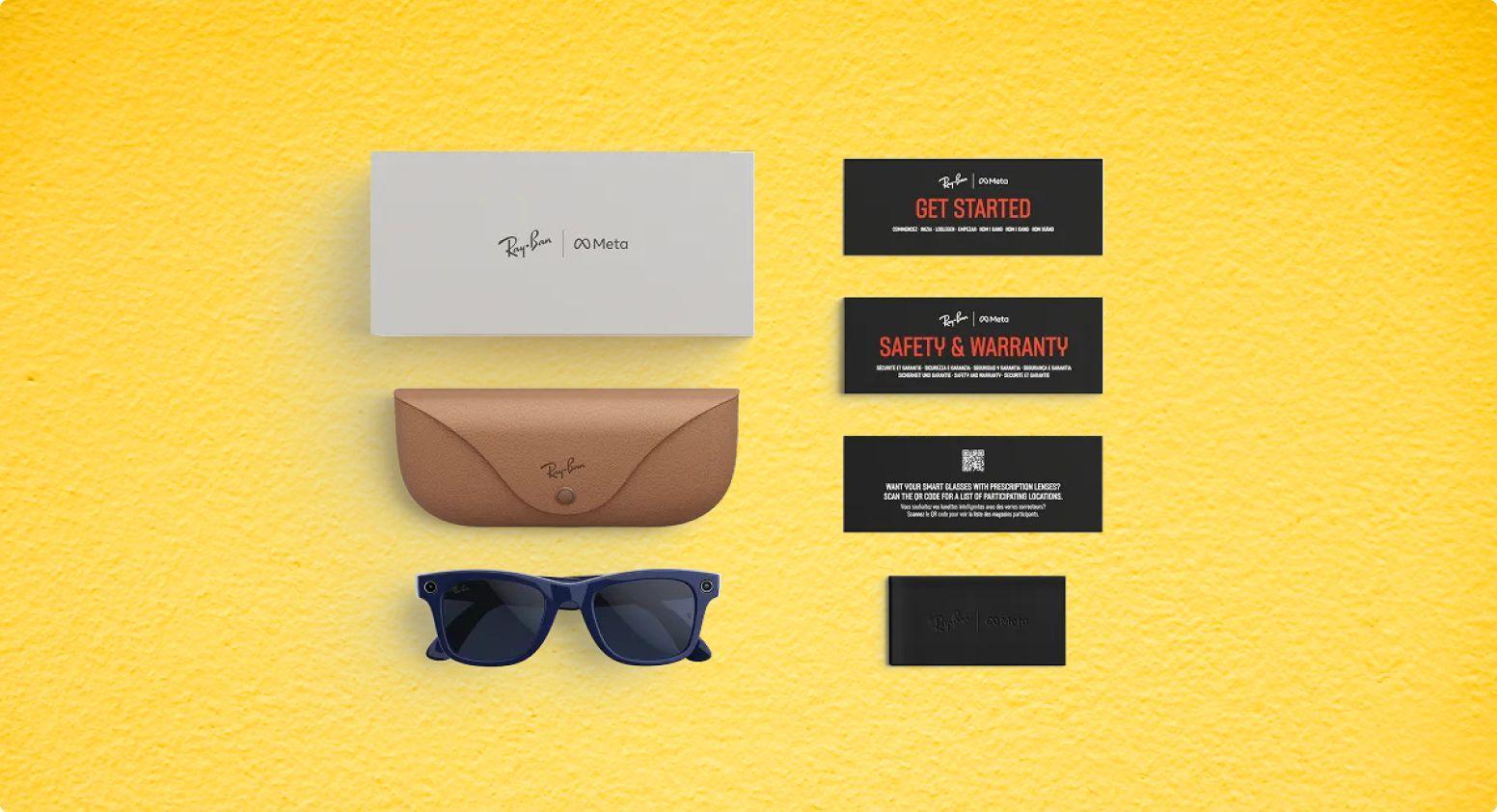
Getting started
- Remove the glasses from their case.
- Power them on: Slide the power switch on the left frame arm towards the front.
- Place the glasses back into the case: Ensure the nose bridge is properly seated on the charging port.
- Check for pairing mode: If the LED on the case doesn’t automatically flash blue, press and hold the pairing button on the back of the case for at least 5 seconds.
- Download the Meta AI mobile app: Available from the App Store or Google Play.
- Log in or create a Meta account: This is required to complete setup.
- Turn on Bluetooth on your phone.
- Pair the glasses: Open the Meta AI app and wait for it to detect the glasses. You may need to click the glasses icon at the bottom right of the screen and click ‘add device’. A pairing request may appear on your phone - confirm it.
- Follow the in-app instructions: The Meta AI app will guide you through the rest of the setup.
Important note: Ray-Ban Meta glasses can only be paired with one Meta account at a time. To pair them with a different account, you’ll need to perform a factory reset.
Connecting apps
Ray-Ban Meta smart glasses can connect with several phone apps, for example:
- Spotify
- Amazon Music
- Apple Music
- Calm
- Shazam
To connect to apps from the Meta AI mobile app, tap the glasses button in the bottom right.
- Tap the settings cog.
- If you have multiple devices paired with the Meta AI mobile app, swipe left or right to select the device that you want to adjust settings for before tapping the settings cog.
- Tap Connected Apps.
- Tap Connect next to the app that you want to connect with and follow prompts to sign in.
Phone call and messages set-up
To connect your phone, Messenger, WhatsApp or Instagram to the Meta AI mobile app:
From the Meta AI mobile app, tap the glasses button in the bottom right.
- Tap the settings cog.
- If you have multiple devices paired with the Meta AI mobile app, swipe left or right to select the device that you want to adjust settings for before tapping the settings cog.
- Tap Communication.
- Tap Connect next to the provider that you want to connect.
To make a call:
With your glasses on say, "Hey Meta, call [name]."
- To use a specific provider (e.g. WhatsApp), say "Hey Meta, call [name] on WhatsApp."
- Listen and confirm that you've selected the correct person.
- After you've confirmed, the call will start connecting.
- When you've finished with the call, you double-tap the touchpad on your glasses or you can hang up from your phone.
Note: You can also answer or decline incoming calls by saying "Hey Meta, answer" or "Hey Meta, decline."
To send a message:
- With your glasses on say, "Hey Meta, send a message to [name]."
- To use a specific provider (e.g. WhatsApp), say "Hey Meta, message [name] on WhatsApp."
- Listen and confirm that you've selected the correct person.
- Say the message that you want to send. Your device will read your message back to you to make sure that it's correct.
- From here, you can say, "Yes", "No" or "Cancel."
To send a voice message through WhatsApp, Messenger or Instagram:
- With your glasses on say "Hey Meta, send a voice message to [name]."
- To use a specific provider (e.g. WhatsApp), say "Hey Meta, send a voice message to [name] on WhatsApp."
- Listen and confirm that you've selected the correct provider and person.
- Once recording has begun, say the voice message that you want to send.
- The recording will stop once silence is detected for 3 seconds or the 1-minute limit has been reached.
- Your device will ask to confirm that you'd like to send.
- From here, you can say "Yes", "No" or "Change."
You can also share your view from your Ray-Ban Meta while on a Messenger, WhatsApp or Instagram video call.
To disconnect Messenger, WhatsApp, Instagram or your phone from the Meta AI mobile app:
From the Meta AI mobile app, tap the glasses button in the bottom right.
- Tap the settings cog.
- If you have multiple devices paired with the Meta AI mobile app, swipe left or right to select the device that you want to adjust settings for before tapping the settings cog.
- Tap Communication.
- Tap the provider that you want to disconnect, then tap Disconnect.
Notes:
- Wireless carrier charges may apply if you connect your glasses to your iPhone or Android phone.
- When you choose to connect your iPhone or Android phone to your glasses, you'll be asked for permission to access your phone contacts, so you can make hands-free calls from your phone with your glasses. Phone numbers and contact history will stay on your devices and will not be shared with Meta servers.
- If your phone is a dual SIM device, then your phone's default SIM will be used to make hands-free calls when connected to the Meta AI mobile app.
For Instagram contacts that don't have names associated with their account, you can set a nickname for them within an existing chat in the Instagram app, which you can then use to call and message them on your glasses. Learn more about nicknames in the Instagram Help Centre.
Important information about making emergency calls using AI glasses
- Emergency calls must be initiated from your mobile device.
- If you have connected your glasses to your iPhone or Android phone, please review your carrier's emergency calling information to understand any limitations.
How to use live translation
With live translation on AI glasses, you can understand speech or listen to audio in French, Italian, Spanish or English. In a conversation, your response is translated for another person to read in the Meta AI mobile app or listen to by tapping the play button.
To start live translation:
- From the Meta AI mobile app, tap the glasses button in the bottom right.
- Tap the settings cog.
- If you have multiple devices paired with the Meta AI mobile app, swipe left or right to select the device you want to use for live translation before tapping the settings cog.
- Tap Translate.
- Tap the two arrows button to select the languages that you want to translate.
- The first time that you use live translations, you'll need to download the languages that you select.
- Tap Continue.
- Tap Start.
- You'll hear a chime on your glasses to let you know that live translation has begun.
You can also start live translation by saying, "Hey Meta, start live translation." You can change the languages in the Meta AI mobile app.
To stop live translation, you can do any one of the following:
- Say "Hey Meta, stop live translation."
- Tap and hold the touchpad on your glasses.
- Tap Stop in the Meta AI mobile app.
Factory resetting glasses
How to factory reset your glasses
A factory reset will delete all captures on your glasses and will require you to unpair and re-pair your glasses with the Meta AI mobile app. You can factory reset your glasses from the Meta AI mobile app or you can perform a manual factory reset.
To factory reset your glasses using the Meta AI mobile app:
From the Meta AI mobile app, tap the glasses button in the bottom right.
- Tap the settings cog.
- If you have multiple devices paired with the Meta AI mobile app, swipe left or right to select the device that you want to factory reset before tapping the settings cog.
- Tap General.
- Tap Factory reset.
- Follow the on-screen instructions.
To manually factory reset your glasses:
- Close the right temple arm.
- Press the capture button five times until the notification LED turns orange.
- Press and hold the capture button until the notification LED starts flashing.
- Release the capture button and wait for the LED to cycle through white and then blue before turning off to indicate that factory reset is complete.
Once your device has been factory reset, you'll need to unpair and then re-pair your glasses with the Meta AI mobile app.
How to factory reset your charging case
If you're experiencing issues using your charging case, a factory reset might help.
To factory reset your charging case:
- Remove your glasses from the case.
- Press and hold the button on the back of the case for more than 16 seconds to factory reset the case.
Need support?